
Compress PDF — Free, No App
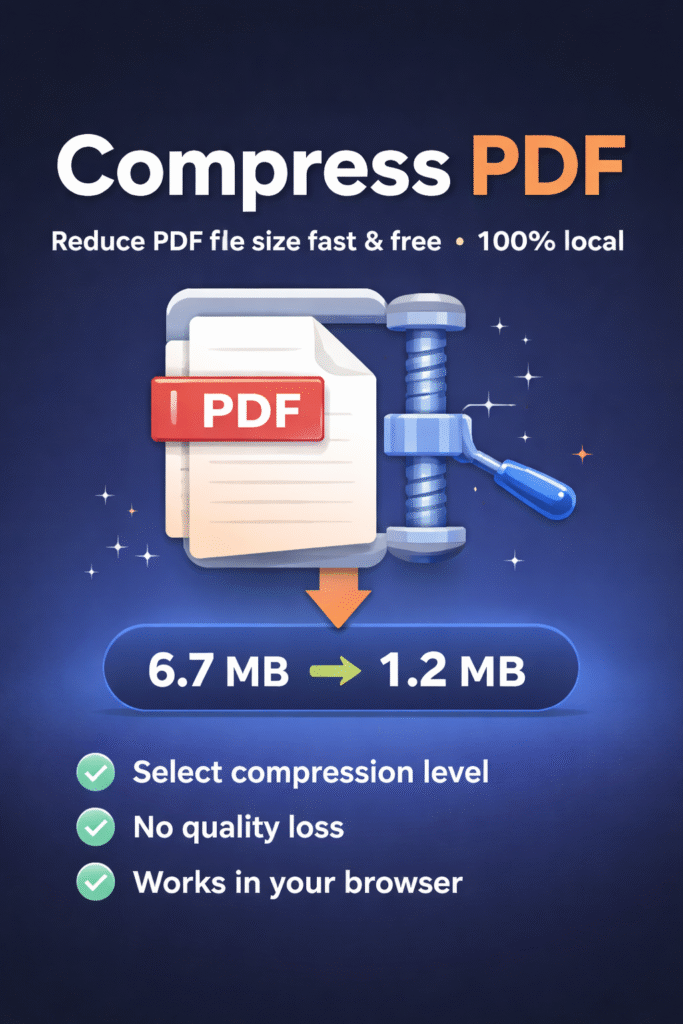
Need to compress PDF files quickly without uploading anything? This tool reduces file size directly in your browser, so your documents stay on your device. Use it to shrink scanned PDFs, photo-based documents, or large reports so they’re easier to email, upload, or store.
This compress PDF tool offers two methods: Recompress images (best size reduction for scans) and Preserve text (fast, but may save little depending on the file). Choose what fits your PDF and your goal.
How to compress a PDF
- Click “Choose PDF File” and select your document.
- Select a method:
- Recompress images for maximum size reduction on scanned/photo PDFs.
- Preserve text when you need selectable text and fast processing.
- Pick a compression level (Recommended or Strong).
- Click Compress PDF and wait until the download button appears.
- Download your smaller file. Everything runs locally in your browser.
Compression methods explained
When you compress PDF files, results depend on what’s inside the document: a PDF made of photos can shrink a lot, while a text-only PDF may not shrink much. That’s why this tool includes two approaches.
1) Recompress images (best for scans)
This mode renders each page and rebuilds a new PDF with optimized JPEG images. It usually delivers the biggest size reduction for PDFs created from scans, phone photos, or screenshots.
- Pros: Best file-size reduction. Great for scanned documents.
- Cons: The output becomes image-based (text will not be selectable).
- Best for: “Scanner app” PDFs, photographed receipts, or any PDF that behaves like images.
2) Preserve text (fast, minimal changes)
This mode re-saves the PDF without rebuilding pages as images. It keeps text selectable and usually runs fast, but it may save little (or nothing) depending on how the PDF was originally created.
- Pros: Keeps selectable text. Very fast.
- Cons: Size reduction can be small.
- Best for: Text documents, forms, and reports where you need copy/paste.
Compression level: Recommended vs Strong
If you want to compress PDF files aggressively, choose Strong. If you want a safer balance between readability and size, choose Recommended.
- Recommended: Better readability, still good size reduction for scans.
- Strong: Smallest files, but images may look slightly softer.
Tips for best results
- Scans/photos: Use Recompress images for the best shrink.
- Text documents: Try Preserve text first to keep selection/copy.
- Very large PDFs: Compression may take longer on low-memory devices; keep the tab open.
- Downloads not appearing: Disable aggressive JS optimization for tool scripts and hard refresh.
When NOT to use this tool
- Password-protected/encrypted PDFs: Browsers may not be able to read them without the password.
- If you must keep selectable text: Avoid “Recompress images” (use Preserve text instead).
- If you need OCR/searchable scans: This tool reduces size but does not add text recognition.
Common issues & fixes
- “Locked/encrypted” message: Open the PDF in your viewer, remove protection, save a new copy, and try again.
- Output looks blurry: Use Recommended instead of Strong (or use Preserve text if possible).
- File size didn’t change: Some PDFs are already optimized; try the other method or Strong level.
- Tool not loading: Exclude
/snap-engines/motor-pdf-compress.jsfrom Delay/Optimize JS and purge cache.
FAQ
Is Compress PDF really free?
Yes. You can compress a PDF without creating an account.
Are my files uploaded?
No. This compress PDF process runs locally in your browser and your files are not uploaded to our servers.
Will the quality change?
In “Recompress images” mode, pages are rebuilt as optimized images, so quality may change slightly depending on the level. In “Preserve text” mode, changes are minimal.
Will text remain selectable?
Only in Preserve text mode. In “Recompress images” mode, the output is image-based, so text won’t be selectable.
Why didn’t my PDF get smaller?
Some PDFs are already optimized. Try “Recompress images” (Strong) for scanned PDFs, or keep the original if savings are minimal.
Why can’t it open my PDF?
Most commonly, the file is password-protected/encrypted or corrupted. Export an unlocked copy from your PDF viewer and try again.
Related Tools
- Merge PDF — Free, No App
- Split PDF — Free, No App
- Crop PDF pages — Free, No App
- Delete PDF pages — Free, No App
- Sanitize / Clean PDF — Free, No App
- Reorder PDF pages — Free, No App