
Add watermark to PDF — Free, No App
Add a text watermark to your PDF in seconds—mark files as DRAFT, CONFIDENTIAL, or SAMPLE and download the updated document. 100% local processing in your browser—no uploads, no signup. Use this tool to add watermark to PDF files before sharing, printing, or sending drafts.
Add Watermark to PDF — Free, No App
Local processing — Files are processed locally in your browser. We do not upload your files to our servers.
Add watermark to PDF online
Add watermark to PDF lets you place a text watermark on every page of your document. It’s ideal for marking files as DRAFT, CONFIDENTIAL, SAMPLE, or for adding a brand name, project name, or internal label before sharing.
Local processing — Files are processed locally in your browser. We do not upload your PDFs to our servers.
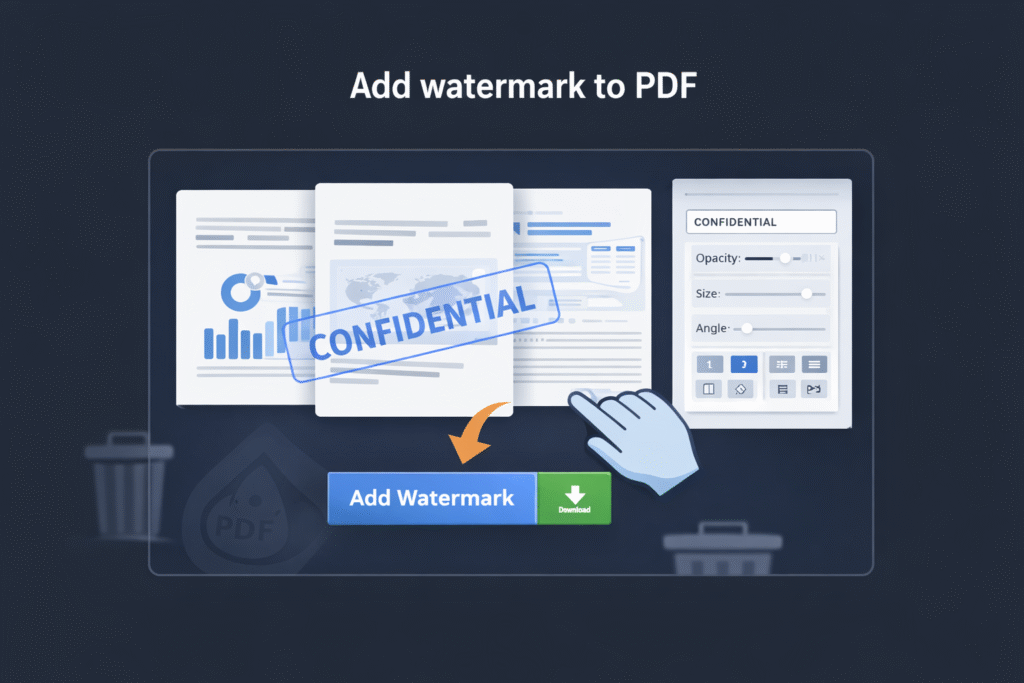
How to add a watermark to a PDF
- Click “Choose PDF File” and select your document.
- Type your watermark text (examples: DRAFT, CONFIDENTIAL, INTERNAL USE).
- Choose style options such as size, opacity, rotation, and position (if available).
- Click “Add Watermark” to generate the updated PDF.
- Download the watermarked PDF.
Watermark ideas that look professional
A watermark works best when it’s readable but not distracting. These patterns are commonly used in business documents:
- Status labels:
DRAFT,APPROVED,FINAL,VOID - Confidentiality:
CONFIDENTIAL,INTERNAL,DO NOT SHARE - Samples / previews:
SAMPLE,PREVIEW,NOT FOR RESALE - Branding: your company name, website, or department name
- Tracking: project code, version label (e.g.,
v1.2), or reference number
Placement strategy (the “safe zone” rule)
Watermarks can collide with headers, signatures, or important text. A simple strategy that avoids most problems:
- Use a diagonal watermark for status labels (DRAFT / CONFIDENTIAL). It’s visible but doesn’t block one line completely.
- Use corners for branding (top-right or bottom-left) if you want a subtle mark that doesn’t interfere with reading.
- Keep a “safe zone” around signatures and stamps (bottom area). If your PDFs are contracts, avoid heavy marks near signature lines.
Tip: if your tool supports opacity, start low (light watermark), then increase only if needed for printing. If the watermark overlaps content, add watermark to PDF again using a corner position and lower opacity.
Watermark vs other PDF tools
Watermarking overlays text on pages. It does not replace proper access control or redaction. If your goal is different:
- Remove pages: delete unwanted pages permanently with Delete Pages.
- Reorder pages: change the page order without altering content.
- Rotate pages: fix sideways scans.
- Split PDF: extract pages into a separate file.
- Compress: reduce size after you finish editing.
Common issues and fixes
1) The watermark blocks important text
Reduce opacity, move the position to a corner, or use a smaller font size. For contracts, avoid placing watermarks over the bottom area where signatures and stamps usually appear.
2) The watermark is too faint when printing
Increase opacity slightly and test with a print preview (or print one page). Some printers lighten background graphics by default. A mid-opacity watermark is usually the best balance.
3) Different pages have different layouts
If a PDF mixes layouts (full-bleed pages, forms, slides), a single watermark position may not fit all pages. Use a centered diagonal watermark for consistency, or choose a corner that remains empty on most pages.
4) Watermarking is not the same as security
A watermark discourages misuse, but it doesn’t prevent copying or screenshots. If you must protect sensitive information, use redaction (content removal) and appropriate access controls.
When NOT to use Add Watermark
- You need to hide sensitive content inside a page: use redaction, not watermarking.
- You need a smaller file: watermark first, then compress.
- You need to prove authorship legally: consider signing workflows (outside watermarking).
- You need to remove content: use Delete Pages or an editor (watermark is only an overlay).
Privacy and security
This tool is built for privacy-first use. Processing runs locally in your browser, so your PDF does not need to be uploaded to add a watermark. This is especially useful for invoices, contracts, IDs, and internal documents.
FAQ
Does watermarking change PDF quality?
It adds a text overlay on each page. The underlying page content remains the same. For most PDFs, visual quality is preserved.
Will the watermark appear on every page?
Yes—watermarks are typically applied to all pages in the output PDF. If you need only certain pages, split first, watermark the part you need, then merge back if necessary. For page-specific watermarking, split the file first, add watermark to PDF on the needed section, then merge.
Can I use “DRAFT” or “CONFIDENTIAL” watermarks for business documents?
Yes. These are common professional labels. Use moderate opacity so the document stays readable.
Will the watermark be visible when printed?
Yes, in most cases. If it prints too light, increase opacity and test one page first.
Is this safe for sensitive PDFs?
Yes—local processing means your file stays on your device during watermarking. Always store the downloaded output securely.
Related Tools
- Sign PDF — Free, No App
- Add page numbers to PDF — Free, No App
- Sanitize / Clean PDF — Free, No App
- Protect PDF — Free, No App
- Merge PDF — Free, No App
- Compress PDF — Free, No App