
Crop PDF Pages — Free, No App
Crop PDF Pages trims page margins to remove white space, scanner borders, and unwanted edges—so your PDF looks cleaner on screen and prints tighter. Processing is 100% local in your browser, so your file stays on your device. Use Crop PDF Pages to trim white margins and keep your document focused on the real content.
Local processing — Files are processed locally in your browser. We do not upload your files to our servers.
Page selection
Crop margins
How to crop PDF pages
- Click Choose PDF File and select your document.
- Set the crop area:
- Use margins (top / right / bottom / left), or
- Choose the pages you want to crop (all pages or a page range).
- Click Crop PDF.
- When it finishes, click Download.
Tip: If your PDF is scanned, crop first to remove borders, then use Compress PDF to reduce size for email or uploads.
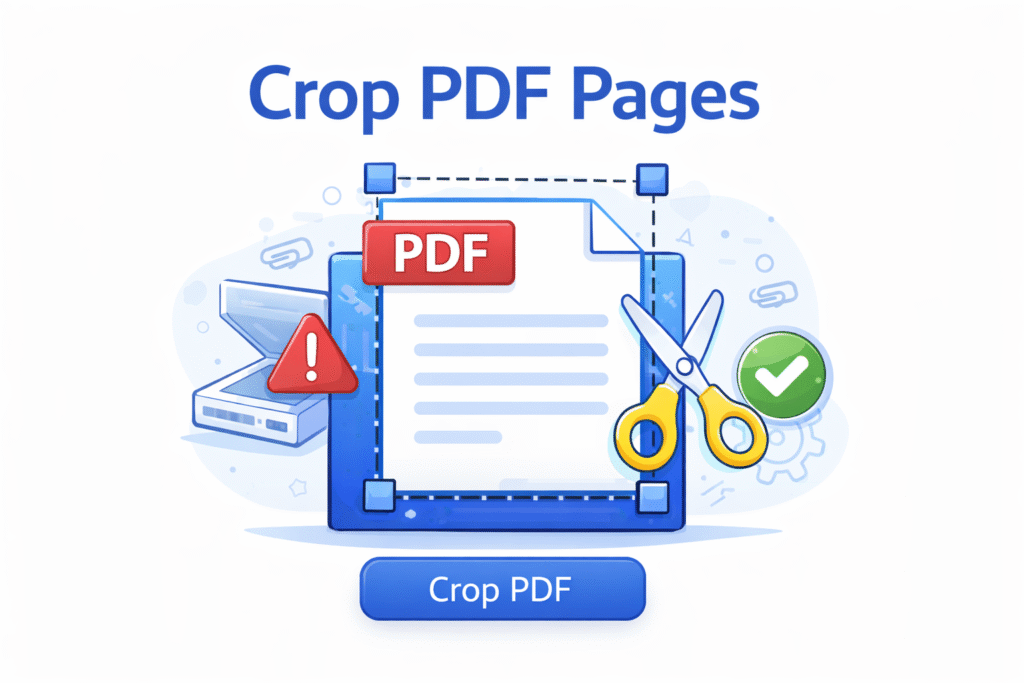
What Crop PDF Pages does
Crop PDF pages lets you trim the visible area of a PDF by adjusting page margins. It’s useful when your file has too much white space, unwanted borders, scanner edges, or you want to focus the page on the real content. Cropping updates the page “view area” so the PDF opens cleaner in viewers and prints more tightly.
Local processing: Files are processed locally in your browser. We do not upload your files to our servers.
Best for
- Removing large white margins to make the content look centered and professional
- Trimming scanner borders, black edges, punch-hole areas, or shadowed corners
- Making PDFs easier to read on mobile by focusing on the main text
- Preparing documents for printing (less empty space, better fit)
What cropping changes (and what it doesn’t)
- Changes: the visible page area (the “crop box/view box”) and how the PDF is displayed/printed
- Does not: delete content permanently (cropped content may still exist outside the visible area)
- Does not: reduce file size much (use Compress PDF for that)
- Does not: rotate pages (use Rotate PDF pages)
Smart cropping scenarios
Crop only the first page (cover page)
If only the cover has big margins, crop a single page instead of the whole file. This keeps the rest of the document unchanged.
Crop alternating pages (scans with uneven borders)
Some scanned documents have different margins on odd and even pages (due to binding). If your tool supports ranges, crop odd pages and even pages separately for a cleaner result.
Crop for mobile reading
Tight margins improve readability on phones and tablets. If text looks “small”, cropping usually helps more than zooming because it reduces wasted space.
When NOT to use Crop PDF
- You need to permanently remove sensitive content: cropping may hide it, not delete it. Use a redaction tool instead.
- You need a smaller file size: use Compress PDF.
- You need to remove pages: use Delete PDF pages.
- You need to split the file: use Split PDF.
Common issues and quick fixes
If you’re using Crop PDF Pages and the result doesn’t look right, these quick fixes usually solve it.
1) I cropped, but the file still prints with margins
Some printers add their own margins. In your print dialog, try: Scale = 100% or Fit to printable area, and verify paper size (A4 vs Letter).
2) Cropping removed too much
Re-crop with smaller margins and download again. If you’re cropping a scanned PDF, zoom in to confirm you’re not cutting into text or page numbers.
3) Only some pages need cropping
Use a page range (for example: 1, or 3-7) to crop only the problem pages. For mixed scans, you can crop in two passes (odd pages, then even pages).
4) My PDF has different content sizes across pages
If page layouts vary (forms + letters + receipts), avoid “one crop for all”. Crop by ranges so each section gets the right margins.
5) Why do I still see margins in some viewers?
Usually not. Cropping changes the visible area, not the embedded images. For size reduction, use Compress PDF.
Crop vs Split vs Delete
- Crop: trims the visible area of pages (better viewing/printing)
- Split: extracts pages into new PDF files
- Delete: removes pages from the document
FAQ
Does cropping permanently remove content?
Not always. Cropping usually hides content outside the visible area. If you must remove sensitive information, use a proper redaction tool.
Can I crop only certain pages?
Yes—use page ranges like 1, 2-5, or 1,3,7 if supported.
Is my PDF uploaded to your servers?
No. Processing happens locally in your browser—your file stays on your device.
Will crop settings work the same in all viewers?
Most modern viewers respect crop/view boxes. If you see differences, test in your browser and in Adobe Acrobat Reader.
Should I keep the original PDF?
Yes. Keep a backup so you can revert if you crop too aggressively.
Related Tools
- Split PDF — Free, No App
- Delete PDF pages — Free, No App
- Rotate PDF pages — Free, No App
- Reorder PDF pages — Free, No App
- Compress PDF — Free, No App
- Sanitize / Clean PDF — Free, No App