
Split PDF — Free, No App
Split a PDF into smaller files, or extract only the pages you need — directly in your browser. This tool runs 100% locally: your PDFs are not uploaded to any server.
Use this split PDF tool to extract specific pages, split by ranges, or create one file per page — all locally in your browser.
How to split a PDF
- Click Choose PDF File and select your document.
- Select a mode:
- Extract pages (creates one new PDF containing only the pages you choose)
- Split by ranges (creates one PDF per range you enter)
- Split into single-page PDFs (creates one PDF per page)
- Enter pages/ranges (example: 1-3,5,7-9) and click Split PDF.
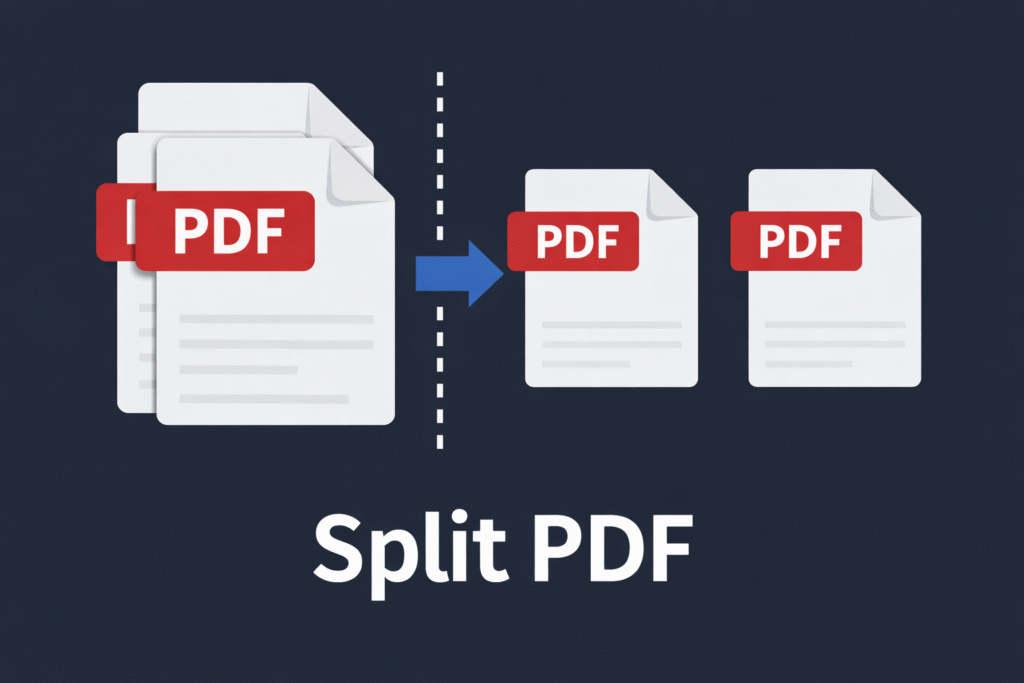
Split modes explained
Extract pages is best when you want to keep only specific pages (for example, pages 2–4 from a long contract). Split by ranges is ideal when you want multiple outputs at once (for example, 1–3 and 4–7 as separate files). Single-page split is useful for printing, approvals, or organizing documents page by page. In short: pick the mode that matches your goal, and the split pdf output will be generated instantly without re-rendering your pages.
Page range examples (copy & paste)
Use these examples to split your PDF faster. Pages start at 1. Separate values with commas.
Extract pages (one new PDF)
2-2→ extracts only page 21,3,5→ extracts pages 1, 3 and 5 into one new PDF4-7→ extracts pages 4 to 7 into one new PDF
Split by ranges (multiple PDFs)
1-2,3-4→ creates two PDFs (pages 1–2) and (pages 3–4)1-1,2-2,3-3→ creates one PDF per page (manual way)
Split into single-page PDFs
Choose this when you want one file per page automatically (great for printing, approvals, or organizing scans).
Tips for best results
- If a PDF is password-protected/encrypted, your browser may not be able to read it. Export an unlocked copy from your PDF viewer and try again.
- For very large PDFs, splitting can take longer on older phones. If possible, close other tabs and keep the browser active during processing.
- If downloads don’t appear, disable aggressive JS optimization for tool scripts in your cache plugin (for example, exclude
/snap-engines/motor-pdf-tools.js) and hard refresh the page.
When NOT to use this tool
- Password-protected PDFs: If a PDF is locked/encrypted, browsers cannot read it without removing the password first.
- Very large PDFs on low-end devices: Splitting huge files can be slow on older phones or low-memory devices.
- If you need OCR/text recognition: This tool splits pages but does not convert scanned images to selectable text.
Common issues & fixes
- “Locked/encrypted” message: Remove the password protection (open in your PDF reader, save an unlocked copy) and try again.
- “Invalid range” error: Make sure pages are within the document’s page count and use commas (example: 1-2,4,6-8).
- Downloads not appearing: Disable aggressive JS optimization for the tool scripts in your cache plugin, then hard refresh.
FAQ
Is Split PDF really free?
Yes. You can split and extract pages without creating an account.
Are my files uploaded?
No. Processing happens locally in your browser.
That means this split pdf process runs on your device, and your document is never sent to our servers.
Can I extract non-consecutive pages?
Yes. Use a list like 1,3,5-7,10.
Can I split one PDF into multiple PDFs at once?
Yes. Choose Split by ranges and enter multiple ranges separated by commas.
Will the quality change?
No. Splitting preserves the original page content; it does not re-render or compress pages.
Why can’t it open my PDF?
Most commonly, the file is password-protected/encrypted or corrupted. Try exporting an unlocked copy from your PDF viewer.
Try other converters
- Merge PDF — Free, No App
- Reorder PDF pages — Free, No App
- Delete PDF pages — Free, No App
- Rotate PDF pages — Free, No App
- Crop PDF pages — Free, No App
- Compress PDF — Free, No App