
Sign PDF — Free, No App
Sign PDF lets you add a visual signature to any PDF in seconds. Draw, type, or upload your signature, place it on the preview, then download the signed PDF — runs locally in your browser (no uploads).
Sign PDF — Free, No App
Add a visual signature locally in your browser (no uploads). Preview, drag & place, then download.
1) Choose a PDF
2) Drag your signature onto the preview
Tip: Click Preview before placing your signature. The preview is the on-screen reference used to map the signature position into the final PDF accurately.
How to sign a PDF in SnapConvert
- Choose PDF and select your file.
- Click Preview (this loads the page preview so you can place the signature correctly).
- Create your signature: Draw, Type, or Upload.
- Drag the signature on the preview. Adjust Size, Opacity, and Ink color if needed.
- Select where to apply it: This page, All pages, or a Range.
- Click Sign PDF, then click Download.
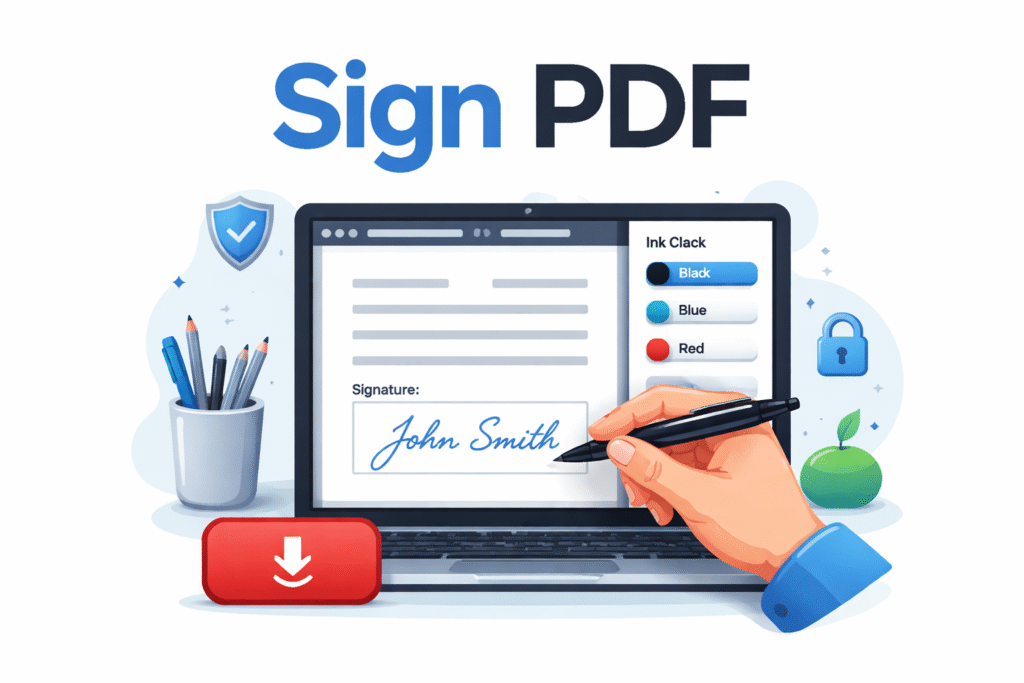
What “Sign PDF” does (and what it does not)
This tool adds a visual signature overlay to your PDF pages (similar to stamping an image on a page).
- Does: place a signature image on one page, all pages, or a page range; optional date/name label; export a new PDF.
- Does not: create a cryptographic digital certificate signature (PAdES), verify identities, or add legal certificate-based validation.
If you specifically need a certificate-backed digital signature (e.g., corporate workflows, government filings), you typically need a dedicated signing certificate and compliant software. For most everyday use (forms, approvals, internal documents), a visual signature is enough.
Ink color: Black, Blue, Red, or Original
Ink color helps your signature look natural and readable on white PDF pages.
- Black: best for printing and maximum contrast.
- Blue: common for “wet-ink” style signatures.
- Red: useful for approvals and attention marks.
- Original: keeps the uploaded signature’s original colors.
Tip for uploads: if you upload a signature image with a solid background (especially JPG), recoloring may also recolor the background. For best results, upload a transparent PNG.
When NOT to use this tool
- If you need a certificate-based digital signature for compliance (PAdES / qualified signatures).
- If your PDF is password-protected and you don’t know the password (unlock it first).
- If you want to sign multiple people with different signatures on different pages (do one pass per signer).
Common issues and quick fixes
1) “Create a signature first (draw/type/upload)”
You clicked Sign PDF without setting a signature. Use one of the three methods:
- Draw a signature and click Use drawing
- Type your name and click Use typed (or just type and press Sign PDF)
- Upload an image and click Use image
2) “No PDF header found” / “Failed to parse PDF document”
This usually means the file isn’t a clean PDF (or it contains unusual leading bytes). Fix it with one of these:
- Open the PDF in Chrome → Print → Save as PDF, then sign the new file.
- Run the PDF through a Repair or Sanitize PDF tool first, then sign.
3) My signature looks too light
- Set Opacity to 100%.
- Choose Black ink for maximum contrast.
- If you uploaded a JPG, prefer a transparent PNG signature for best readability.
4) The signature is “off” position after download
Always click Preview first. The tool maps signature placement to the preview size. If you change the preview page, click Preview again before signing.
5) The PDF is password-protected
Unlock the PDF first using an Unlock PDF tool (you’ll need the password). Then sign the unlocked file.
Privacy and security
SnapConvert runs this tool locally in your browser, which means:
- Your PDF file stays on your device during the signing process.
- We do not upload your PDFs to our servers.
- You control when to download the signed result.
FAQ
Is this a legal digital signature?
This tool creates a visual signature placed on the PDF (like an image overlay). In many everyday contexts that’s acceptable, but it is not a certificate-backed digital signature standard (PAdES).
Can I sign all pages at once?
Yes. Choose All pages to place the same signature on every page, or select a Range for specific pages.
Can I choose a different signature style?
Yes. You can draw, type, or upload your own signature image. For best results, upload a PNG with transparent background.
Does SnapConvert keep a copy of my PDF?
No. The signing process runs locally in your browser and SnapConvert does not upload your file.
Why do I need Preview before signing?
Preview creates the on-screen page reference used to map your signature position into the final PDF correctly.
Try other converters
- Protect PDF — Free, No App
- Unlock PDF — Free, No App
- Add watermark to PDF — Free, No App
- Add page numbers to PDF — Free, No App
- Merge PDF — Free, No App
- Compress PDF — Free, No App