
Delete PDF pages — Free, No App
Delete PDF pages in seconds: remove unwanted pages, blank pages, or duplicates and download a clean PDF. 100% local processing in your browser—no uploads, no signup. Use this tool to delete PDF pages before printing or sharing your document.
How to delete PDF pages
- Click “Choose PDF File” and select your PDF.
- Select the pages to remove (use the tool’s page selector / range input if available).
- Preview the pages to confirm you’re deleting the correct ones.
- Click “Delete Pages” to generate the updated PDF.
- Download the cleaned PDF.
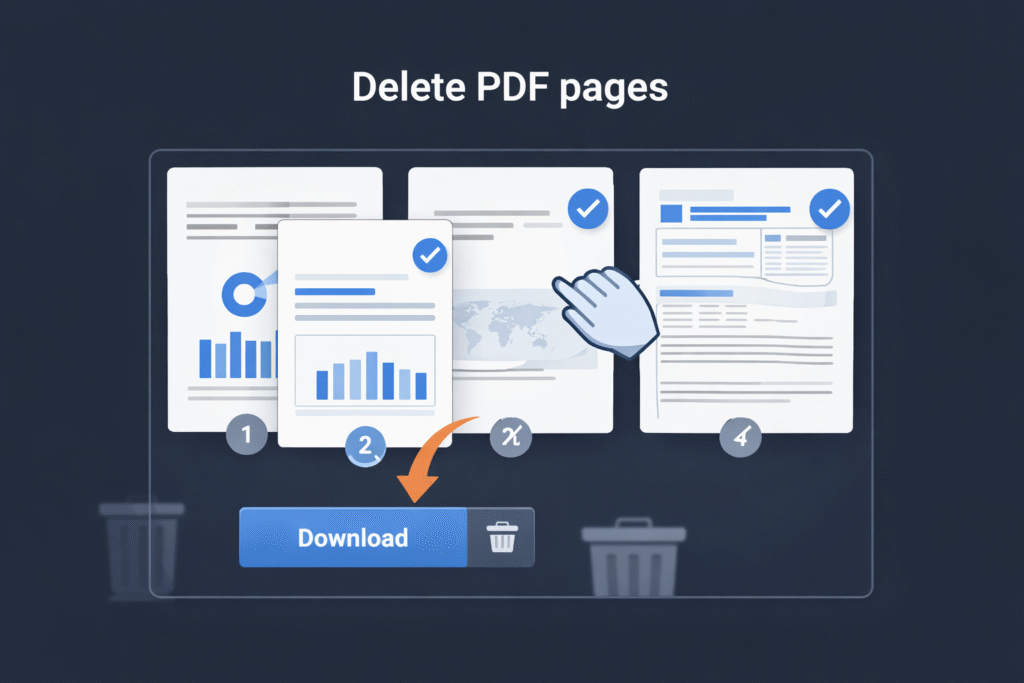
Delete PDF pages online
Delete PDF pages removes selected pages from your PDF and exports a new file without them. It’s the fastest way to clean up documents before sharing, printing, or merging—especially when you only need to remove blank pages, duplicates, extra scans, or unwanted attachments.
When deleting pages is the fastest fix
If your PDF is correct but contains a few unwanted pages, deleting pages is usually cleaner than rebuilding the file from scratch. Common use cases:
- Remove blank pages: scanners often insert empty pages between documents.
- Delete duplicates: repeated pages from rescans or copy/paste exports.
- Cut attachments: remove appended pages you don’t want to share.
- Clean print packs: keep only the pages you need before printing.
- Shorten reports: remove drafts, internal notes, or irrelevant sections.
Page selection cheat sheet (avoid mistakes)
Many delete-tools support page ranges. These examples show the most common patterns:
- Single page:
3(deletes only page 3) - Multiple pages:
2,5,9(deletes pages 2, 5, and 9) - Range:
4-8(deletes pages 4 through 8) - Mix:
1,4-6,10(deletes page 1, pages 4–6, and page 10)
Tip: before exporting, do a quick scroll of the preview and confirm the page numbers you plan to remove. For long PDFs, write a tiny “delete list” on paper (e.g., “remove 2–3, 11, 18–20”) and match it once in the preview.
Delete pages vs other PDF tools
Deleting pages permanently removes them from the exported PDF. If your goal is different, choose the right tool:
- Reorder pages: keep all pages but change the sequence.
- Split PDF: extract a range into a separate file instead of deleting.
- Rotate pages: fix sideways pages without removing anything.
- Merge PDFs: combine multiple documents after cleanup.
- Compress: reduce file size after you delete unnecessary pages.
Common issues and fixes
1) I deleted the wrong pages
Re-open the original PDF and try again. The safest workflow is: preview → confirm page numbers → delete → download. If the PDF is critical, do a quick scroll on the downloaded output to confirm nothing important was removed.
2) The PDF is large and feels slow
Scanned PDFs with many pages can take longer to preview and rebuild. Close heavy tabs, keep the file on local storage, and try again. After deleting pages, compress the final PDF if size matters.
3) The output looks different in my PDF viewer
Some viewers render fonts or transparency slightly differently. Test the downloaded file in another viewer (Chrome vs. a desktop PDF reader). If the source PDF is damaged, run a repair/sanitize step first, then delete pages again.
4) “Deleting” is not the same as hiding or redacting
Removing pages deletes them from the exported PDF. But if you need to hide sensitive information inside a page, you need redaction (content removal) rather than page deletion. Use deletion when the entire page should be gone.
When NOT to use Delete PDF pages
- You need to remove sensitive text inside a page: deleting pages won’t redact content on remaining pages.
- You need to extract pages into a new file: use Split PDF instead of deleting.
- You only need to reorder: use Reorder Pages to keep everything.
- You need OCR/searchable text: deletion doesn’t add text recognition.
Privacy and security
This tool is designed for privacy-first use. Processing runs locally in your browser, so your PDF does not need to be uploaded to delete pages. For sensitive documents (IDs, invoices, contracts), local processing is a safer default workflow.
FAQ
Does deleting pages reduce file size?
Often yes—especially if you remove image-heavy pages. For the smallest result, delete pages first and then run a compression pass.
Does deleting pages change PDF quality?
No. Deleting pages removes selected pages and keeps the remaining pages as-is. It does not downsample images or rewrite content by default.
Will bookmarks, links, or forms still work?
In most PDFs, these elements remain. However, if bookmarks or links point to pages you removed, those references may no longer work. If it’s important, check the downloaded output quickly.
Can I delete pages from scanned PDFs?
Yes. Removing blank pages and duplicates is one of the most common scanned-PDF use cases.
What if the PDF won’t load?
If the PDF fails to preview or export correctly, try a repair/sanitize step first, then delete pages again.
Related Tools
- Reorder PDF pages — Free, No App
- Split PDF — Free, No App
- Crop PDF pages — Free, No App
- Rotate PDF pages — Free, No App
- Compress PDF — Free, No App
- Merge PDF — Free, No App