
Reorder PDF pages — Free, No App
Reorder PDF pages in seconds: move pages into the exact order you want and download the updated file. 100% local processing in your browser—no uploads, no signup. You can reorder PDF pages before printing, sharing, or merging files into a final document.
How to reorder PDF pages
- Click “Choose PDF File” and select your PDF.
- Preview the pages to confirm you loaded the right document.
- Move pages into the correct sequence (use the page controls on the tool).
- Click “Reorder” to generate the updated PDF.
- Download the reordered PDF.
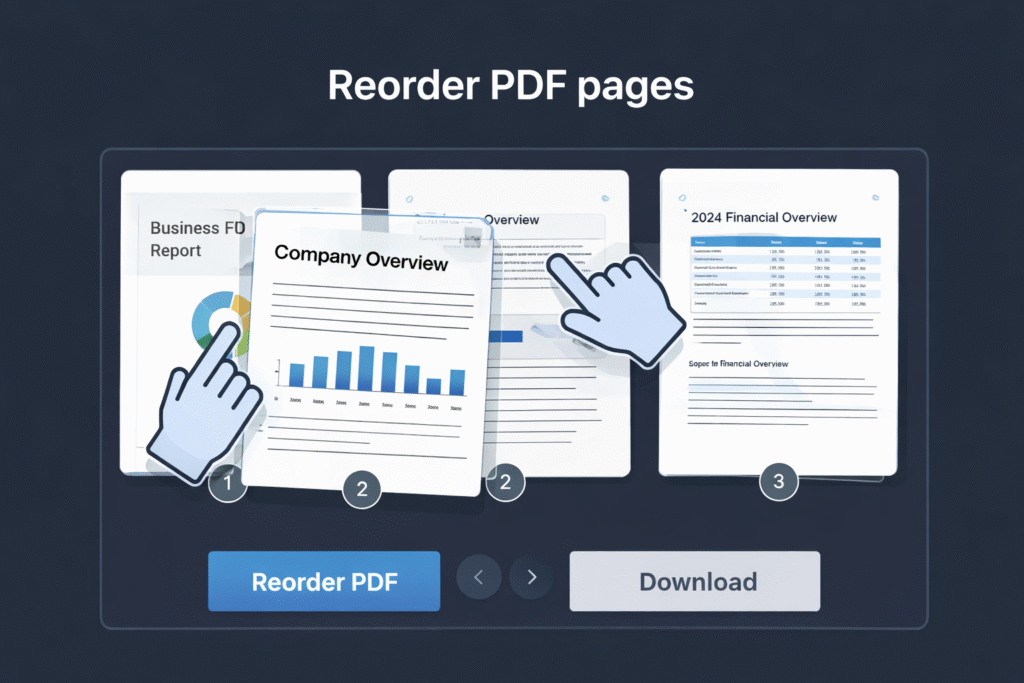
Reorder PDF pages online
Reorder PDF pages lets you change the page sequence inside a PDF without changing the content. It’s perfect when everything is there, but the order is wrong: shuffled scans, reports that need a better flow, or documents where you must move signature pages and appendices into the correct position.
Local processing: Files are processed locally in your browser. We do not upload your PDFs to our servers.
When reordering is the fastest fix
Reordering is usually the quickest solution when the pages are correct but their placement is not. Common real-world examples:
- Scans in the wrong order: pages scanned out-of-sequence or reversed.
- Printing packs: arrange invoices, shipping labels, receipts, and forms before printing.
- Contracts: move signature pages, annexes, and exhibits into the correct spot.
- Study material: reorder lecture notes, slides, or handouts into a cleaner structure.
- Duplex scan cleanup: when front/back pages were captured separately and need a specific pattern.
A practical “page-map” workflow (prevents mistakes)
Long PDFs are easy to mess up while moving pages around. This workflow keeps it controlled:
- Create a quick page map using page numbers and section names (example: “1 Cover, 2–5 Intro, 6–18 Main, 19–22 Appendix”).
- Group first, fine-tune later: build the correct sections before perfecting the order inside each one.
- Final review pass: do one complete scroll from start to finish before downloading.
Reorder vs other PDF tools
Reordering changes only the sequence of pages. It does not edit content, reduce size, or rotate pages. If your goal is different, use the right tool:
- Delete pages: remove unwanted pages permanently.
- Rotate pages: fix sideways or upside-down pages.
- Split PDF: extract a range or separate a PDF into multiple files.
- Merge PDFs: combine multiple PDFs into one document.
- Compress: reduce size after you finish reordering.
Common issues and fixes
1) The PDF is large and feels slow
Big scanned PDFs can take longer to preview and rebuild. Close heavy tabs, try again, and keep the file on local storage. After reordering, compress the final PDF if size matters.
2) The preview looks right, but the downloaded PDF is wrong
This typically happens when a move wasn’t applied or confirmed. Re-check the page list, run the reorder action again, then download the new output. If needed, reorder PDF pages again from scratch and export a fresh copy.
3) Blank pages after download
Test with another PDF viewer (Chrome vs. a desktop reader). If the source PDF is damaged, run a repair/sanitize step first, then reorder again.
4) You need an interleave pattern (duplex scans)
Duplex scans sometimes need a specific pattern (front pages first, then back pages reversed). Use the page-map workflow: build the correct sections first, then fine-tune page-by-page.
When NOT to use Reorder Pages
- You need to edit text or images: reordering won’t change content inside pages.
- You need OCR/searchable text: use OCR tooling (not a reorder function).
- You want a smaller file: reorder first, then compress.
- You need to remove pages: use Delete Pages instead of reordering.
Privacy and security
This tool is designed for privacy-first use. Processing runs locally in your browser, which means your PDF does not need to be uploaded to reorder pages. For sensitive files (IDs, invoices, contracts), local processing is a safer default workflow.
FAQ
Does reordering change PDF quality?
No. Reordering changes only the page sequence and does not modify page content.
Will links, bookmarks, or forms still work?
Most PDFs keep these elements after reordering. For complex interactive PDFs, behavior can vary depending on how the file was built. If it’s important, do a quick check after downloading.
Can I reorder scanned PDFs?
Yes. Shuffled or reversed scans are one of the most common use cases.
What if the PDF won’t load?
If the PDF fails to preview or export correctly, try a repair/sanitize step first, then reorder again.
Is this safe for sensitive documents?
Yes—local processing means your file stays on your device during the reorder. Always store the downloaded output securely.
Try other converters
- Merge PDF — Free, No App
- Split PDF — Free, No App
- Delete PDF pages — Free, No App
- Rotate PDF pages — Free, No App
- Crop PDF pages — Free, No App
- Compress PDF — Free, No App