
Add page numbers to PDF — Free, No App
Add page numbers to PDF files in seconds—choose position and style, apply numbering, and download the updated document. 100% local processing in your browser (no uploads, no signup). Perfect for reports, contracts, invoices, and study notes where clear page references matter.
How to add page numbers to a PDF
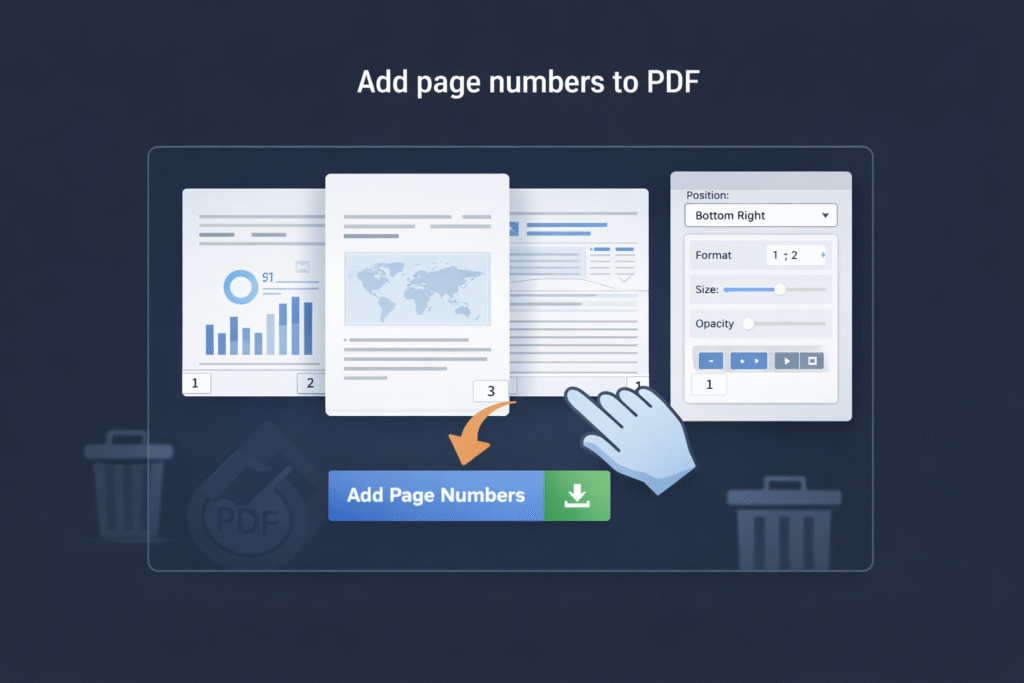
- Click Choose PDF File and select your document.
- Pick a position (top/bottom and left/center/right) for the numbers.
- Set the format (for example: 1, 2, 3 or Page 1 of 12 if available).
- Adjust size and opacity so the numbers stay readable without covering content.
- Click Add Page Numbers and then download the updated PDF.
Add page numbers to PDF online
Add page numbers to PDF files in seconds and export a new copy with clear numbering on each page. This is ideal for reports, contracts, court filings, invoices, and study notes where page references matter. Use it to add page numbers to PDF for reports, invoices, court filings, or study notes.
Numbering styles that look professional
Page numbering is most useful when it’s consistent and unobtrusive. These patterns work well in business and academic PDFs:
- Bottom-right for invoices, proposals, and reports (common default in many templates).
- Bottom-center for long documents that will be printed and bound.
- Top-right for documents with footers already full of legal text or signatures.
- Small + semi-transparent when pages have dense content (tables, diagrams, forms).
Layout safety rule (avoid covering content)
Many PDFs already contain footers, page margins, or crop marks. A simple workflow prevents overlaps:
- Scan the first and last page in the preview to see if there’s a footer/header already.
- Choose the emptiest corner (often bottom-right or bottom-center).
- Start with a smaller font and increase only if needed for printing.
Tip: if your numbers collide with a footer (company address, confidentiality notice), switch to the top area and keep opacity slightly lower.
A practical “citation” workflow for long PDFs
If you’re numbering a PDF so people can reference sections during review, do this for cleaner feedback:
- Add page numbers first, then merge or reorder pages if needed.
- Ask reviewers to cite feedback like “p.12, section 3.2” instead of “the page after the chart”.
- If the file will be printed, test a single page print preview to confirm readability.
Page numbers vs other PDF tools
Page numbering adds an overlay to each page. It does not reorganize, compress, or remove content. If your goal is different, use the right tool:
- Reorder pages: change the page order without removing anything.
- Delete pages: remove unwanted pages permanently.
- Split PDF: extract a range into a new file.
- Merge PDF: combine multiple PDFs into one document.
- Compress PDF: reduce file size after you finish numbering.
Common issues and fixes
1) The numbers overlap existing headers/footers
Move the position to a different edge (top vs bottom) or switch from left/right to center. Reduce the font size slightly.
2) The numbers look too faint when printing
Increase opacity a bit and check print preview. Some printers lighten gray overlays, so a mid-opacity setting is often best.
3) Different pages have different margins
Mixed-layout PDFs (scans + digital pages) can have inconsistent whitespace. Use a corner position that stays empty on most pages, and keep the font smaller to reduce collisions.
4) “Page X of Y” is incorrect after edits
If you changed the page count after numbering (delete/reorder/split/merge), apply the numbering again to generate a fresh, consistent sequence.
When NOT to use page numbers
- You need redaction: numbering does not hide or remove sensitive information.
- You need OCR/searchable text: add OCR first (numbering doesn’t recognize text).
- You only need to reference a small section: split the PDF and number only that part.
- You are signing legally: consider finalizing content first, then add page numbers to the final version.
Privacy and security
This tool is built for privacy-first use. Processing runs locally in your browser, so your PDF does not need to be uploaded to add page numbers. For sensitive files (contracts, IDs, internal documents), local processing is a safer default workflow.
FAQ
Does adding page numbers change PDF quality?
No. Page numbering adds a small text overlay. The underlying page content remains the same in most cases.
Will page numbers appear on every page?
Typically yes. If you need to skip the cover page, remove it first (split) or add numbering after you separate sections. Yes—this tool can add page numbers to PDF on every page in the exported copy.
Will bookmarks, links, or forms still work?
In most PDFs, interactive elements still work. However, behavior can vary with complex forms—do a quick check after downloading.
Can I add page numbers to scanned PDFs?
Yes. This is a common use case for scanned reports and receipts. For best readability, choose a corner with clean whitespace.
What if the PDF won’t load?
If the PDF fails to preview or export correctly, try a repair/sanitize step first, then add page numbers again.
Is this safe for sensitive documents?
Yes—local processing means your file stays on your device during numbering. Always store the downloaded output securely.
Related Tools
- Add watermark to PDF — Free, No App
- Reorder PDF pages — Free, No App
- Delete PDF pages — Free, No App
- Rotate PDF pages — Free, No App
- Merge PDF — Free, No App
- Compress PDF — Free, No App