
Convert BMP to PNG — Free, No App
Convert BMP images to PNG in seconds with SnapConvert. PNG uses lossless compression, so you keep sharp quality while often reducing file size for faster sharing and web publishing. Everything runs locally in your browser—no uploads, no installation. Use this page to Convert BMP to PNG quickly, with local processing and no uploads.
Local processing — Files are processed locally in your browser. We do not upload your files to our servers.
No file selectedHow this converter works
- Local processing: the conversion runs in your browser. Your files are not uploaded to our servers.
- Simple flow: Choose file → Convert → Download.
- Best use case: Convert BMP to PNG when you need a lossless, web-friendly image for websites, guides, and screenshots.
Why convert BMP to PNG?
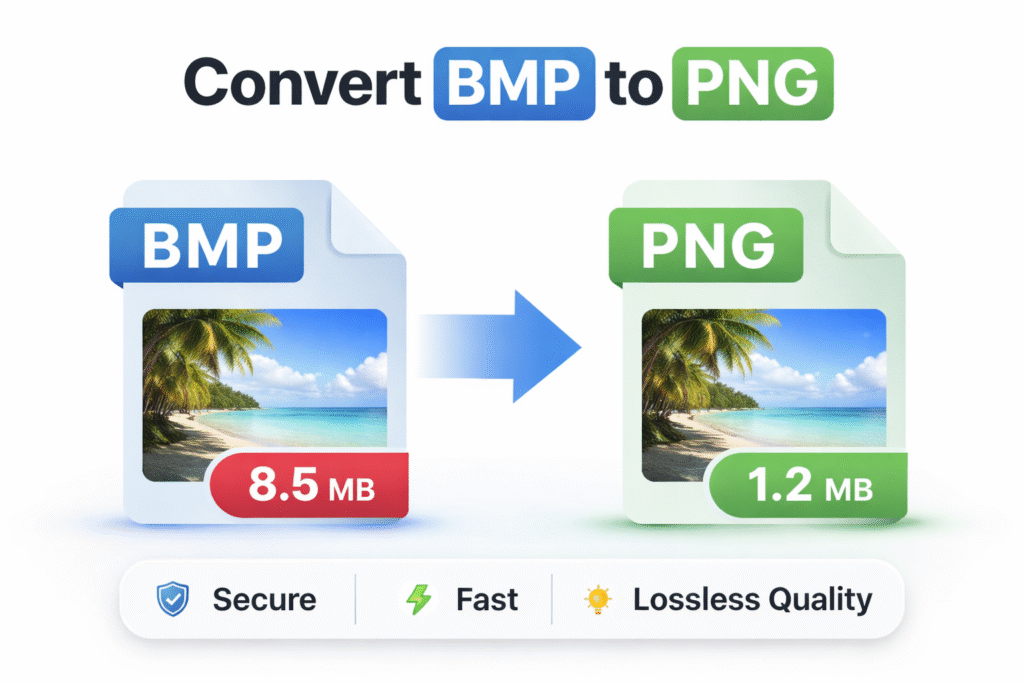
BMP (Bitmap) files are often large because they commonly store image data with little or no compression. That extra weight can slow down uploads, sharing, and especially web delivery. PNG is a modern, widely supported format that uses lossless compression, helping you reduce file size while keeping crisp edges and readable text.
If you publish images online, converting BMP to PNG is a practical step toward faster pages and a smoother user experience. Smaller images can also support better performance metrics such as Core Web Vitals.
Best use cases
- Web publishing: Convert BMP to PNG before uploading to websites, stores, blogs, or landing pages.
- UI screenshots: keep sharp edges and clear text while typically reducing file size.
- Documentation: lighter images make help pages and guides feel faster and easier to read.
- Sharing: send cleaner, lighter files through chat/email without changing visual quality.
When NOT to use PNG
PNG is excellent for lossless graphics, but it is not always the smallest option. Consider another output when:
- You are converting photographs and need the smallest possible size (JPG/WebP/AVIF may be better).
- Your goal is maximum page speed for web-only delivery (WebP/AVIF can be smaller in many cases).
- Your workflow depends on keeping the file as a legacy BMP for a specific tool or system.
Practical approach: use PNG for crisp screenshots and graphics, and use JPG/WebP/AVIF for photos when you want the smallest file weight.
Tips to get the best output
1) Crop first to reduce file size
PNG compression works best when the image contains only what you need. If your BMP has large margins or empty areas, cropping first can noticeably reduce the final PNG size.
2) Transparency: what to expect
PNG supports transparency, but conversion does not create it. If your BMP is fully opaque, the PNG will also be opaque. If your source truly includes transparency data, the output may preserve it depending on the file.
3) Keep text and edges sharp for web UI
For screenshots with text, PNG is usually safer than lossy formats because it avoids compression artifacts around letters, icons, and thin lines. This is ideal for tutorials, UI guides, and support content.
Common issues and quick fixes
“Nothing happens” after clicking Convert
- Confirm the file is a real .bmp (some files are mislabeled).
- Reload the page and try again.
- If the file is very large, give it a moment – your device is doing the work locally.
The PNG is not much smaller than the BMP
- Highly detailed or noisy images may not compress dramatically.
- Crop unused areas and try again.
- For photos, consider JPG/WebP/AVIF when lossless output is not required.
It still feels heavy for website use
- If it is a photo, PNG may not be the best final format – try JPG/WebP/AVIF instead.
- If it is a screenshot, keep PNG but reduce dimensions to the exact size you need on the page.
Privacy and security
Local processing — Files are processed locally in your browser. We do not upload your files to our servers. This is ideal for private screenshots, client assets, and sensitive images while keeping a fast conversion flow.
FAQ
Does this tool upload my BMP file?
No. The conversion runs locally in your browser. Your files are not uploaded to our servers.
Will BMP to PNG reduce image quality?
PNG is typically lossless, so your image should remain visually identical. The main benefit is usually smaller file size and better compatibility for web use.
Does converting to PNG add transparency?
No. PNG supports transparency, but conversion does not create it if your BMP is opaque. Transparency is only preserved if the source contains it.
Why is my PNG still large for website use?
Some images (especially photos or noisy graphics) do not compress as much in PNG. Crop unused areas, reduce dimensions, or use JPG/WebP/AVIF for smaller web delivery when lossless output is not required.
What browsers are supported?
Modern browsers like Chrome, Edge, and Firefox are recommended. If you run into issues, update your browser and try again.
Will metadata be preserved after conversion?
Some metadata may not carry over during conversion. If you must retain all original metadata, keep the BMP as your master copy.