
Convert SVG to WEBP — Free, No App
Convert SVG to WEBP in seconds. Convert SVG vector graphics into a modern WEBP image with local browser processing for fast, private conversions—no uploads, no installs, and a simple Download when it’s ready.
Local processing — Files are processed locally in your browser. We do not upload your files to our servers.
No file selectedHow to convert SVG to WEBP with SnapConvert
- Choose your SVG file using the “Choose SVG File” button.
- Click “Convert to WEBP” to start the conversion.
- When the conversion finishes, use the Download button/link to save your new WebP image.
Why convert SVG to WEBP?
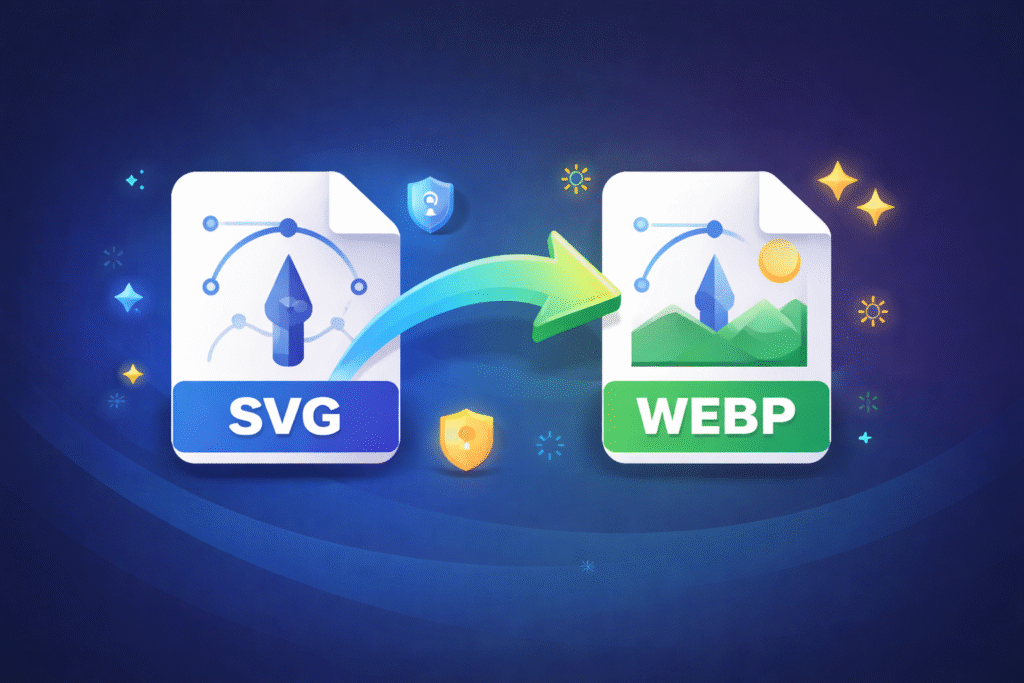
SVG is a vector format (paths and shapes), while WebP is a raster image (pixels). Converting SVG to WebP is useful when you need a lightweight, modern image file for the web—especially for platforms, CMS workflows, or apps that don’t handle SVG reliably. WebP often delivers smaller file sizes than PNG/JPG at comparable visual quality, which can help improve loading speed and overall performance.
This SnapConvert tool runs fully in your browser. Your SVG is processed on your device, which is ideal for privacy-sensitive assets (client graphics, brand logos, internal diagrams) and quick conversions without installing software.
Tip: Because SVG is vector-based, the converter must render it into pixels. If your output looks too small, check that your SVG has proper viewBox and width/height values, or re-export the SVG at the size you need.
When NOT to convert SVG to WEBP
WebP is excellent for web delivery, but converting isn’t always the best choice:
- You need infinite scaling: For logos and icons that must stay perfectly sharp at any size, keep SVG.
- You need editability: SVG remains editable (shapes, paths, text). WebP becomes a flat pixel image.
- Print or vector workflows: For professional print or vector pipelines, SVG (or vector PDF) is usually the right format.
- Your SVG depends on external assets: Linked fonts/images may render differently when rasterized; consider embedding assets first.
SVG vs WEBP: practical differences
SVG and WebP solve different problems. SVG is best when you want resolution-independent graphics; WebP is best when you want a compact, fast-loading image file for modern web use.
| Scenario | Recommended |
|---|---|
| Logos, icons, UI graphics that must scale perfectly | SVG (vector stays crisp at any size) |
| Website delivery where SVG isn’t supported/allowed | WebP (small, modern raster output) |
| Fast-loading graphics with transparency | WebP (often smaller than PNG; supports alpha) |
| Maximum compatibility in older tools/workflows | PNG (graphics/transparency) or JPG (photos) |
Common issues and quick fixes
If you Convert SVG to WEBP and something looks off, these quick checks solve most rendering and export issues.
- Fonts look different after conversion: Some SVGs reference fonts that aren’t embedded. Fix: convert text to outlines/paths in your design tool, or embed fonts when exporting the SVG.
- Missing images inside the SVG: If the SVG links external images, the browser may not load them during local rendering. Fix: embed images in the SVG (data URI/base64) or re-export with embedded assets.
- Output looks blurry or too small: SVG is vector, but WebP is pixels. Fix: ensure the SVG has a proper
viewBoxand dimensions; re-export at a larger size if needed. - Colors look slightly different: Minor shifts can happen across encoders/renderers. Fix: test in Chrome/Edge, and keep a PNG export as a fallback when exact color matching is critical.
Best practices for using WEBP on the web
- Keep the original SVG as your master file for future edits and perfect scaling.
- Export at the right size for how the image will be displayed (avoid exporting huge images you’ll never show).
- Use transparency wisely: WebP supports alpha, but test your target platforms if you rely on transparency.
- Provide fallbacks when needed in your pipeline (WebP is widely supported, but not universal in every legacy environment).
FAQ
Do you upload my SVG file to a server?
No. The conversion runs locally in your browser, so your file stays on your device during processing.
Will my SVG stay “vector” after converting?
No. WEBP is a raster format. The SVG is rendered into pixels, so the result won’t scale infinitely like an SVG.
Will transparency be preserved?
In many cases, yes. WEBP supports transparency, so transparent SVG backgrounds typically remain transparent after conversion.
Why does my output look small or low-resolution?
SVG needs a target pixel size when rasterized. Make sure your SVG has a proper viewBox and dimensions, or re-export the SVG at the size you want before converting.
Can I convert multiple SVG files at once?
This page is optimized for simple, reliable conversions. Convert files one at a time for best stability, especially on mobile.