
Convert WebM to MP3 — Free, No App
Convert WebM to MP3 in seconds with local processing. Extract audio from a WebM video (often Opus) and download a clean MP3 for listening, sharing, or importing into apps — everything runs directly in your browser for privacy (no uploads, no installs).
Use this tool to convert WebM to MP3 locally when you need an audio-only file that plays everywhere.
How to Convert WEBM to MP3 on Android, iPhone, or PC
Use this tool when you need to extract audio from a WebM video and save it as a standard MP3 for easy playback, sharing, or importing into apps. SnapConvert runs the conversion locally in your browser for privacy — no installs, no uploads.
- Click “Choose WEBM File” and select your .webm video.
- Optionally adjust audio settings (bitrate, stereo/mono, sample rate), then click Convert.
- Wait for processing to finish (long videos take longer).
- When it finishes, click Download to save your .mp3 file.
Tip: On mobile, keep this tab in the foreground while converting (browsers may slow down background tabs to save battery).
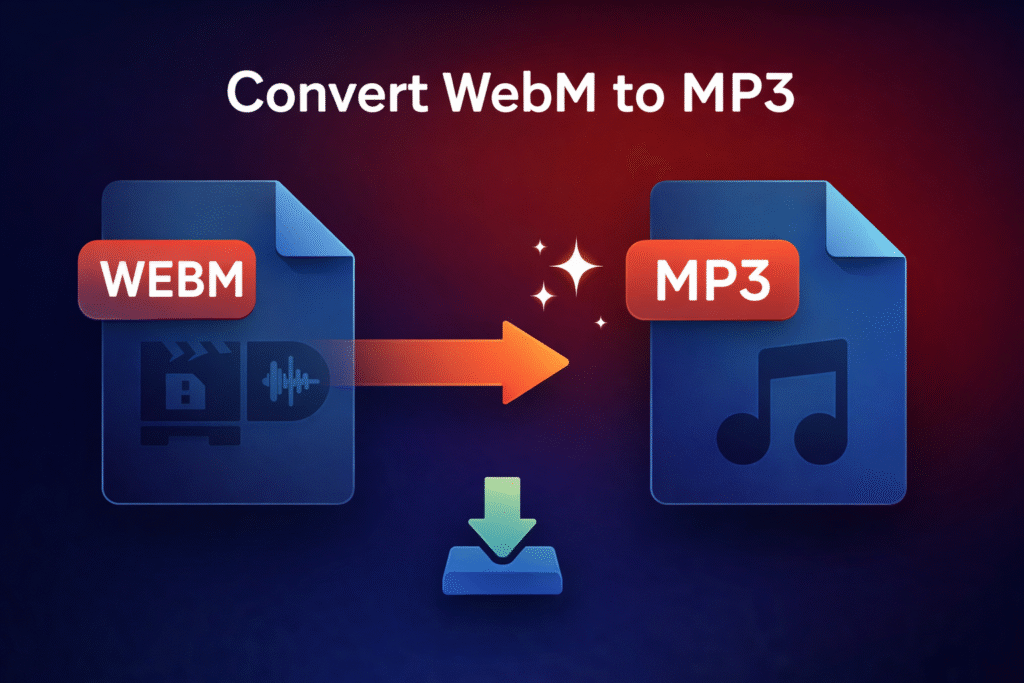
What Is a WEBM File?
WEBM is a web-focused video container commonly used for browser playback and online recordings. A WEBM file can include a video stream (often VP8/VP9/AV1) plus an audio stream (commonly Opus or Vorbis). Converting WEBM to MP3 usually means taking the audio out (often Opus) and saving it as an MP3 file. If you only need the soundtrack, you can convert WebM to MP3 and keep a simple audio-only file.
- WEBM = container (wrapper for streams).
- Opus / Vorbis = audio codecs (compression method).
- VP8 / VP9 / AV1 = video codecs (compression method).
Why WEBM Audio Is Often Opus (and Why That Matters)
Many WEBM files come from screen recordings, WebRTC calls, Discord/Meet exports, or web downloads, and those often use Opus for audio because it’s efficient at both speech and music. MP3 is more universal for downloads and offline use, so converting WEBM to MP3 is a common “make it compatible everywhere” step. If a player or app doesn’t support Opus, convert WebM to MP3 to avoid compatibility issues.
WEBM vs MP3 (Quick Comparison)
WEBM: web video container; may include video + audio in one file.
- MP3: audio-only; easy sharing; maximum playback compatibility.
- Result: WEBM → MP3 removes the video and keeps only the audio.
Important: WEBM → MP3 Won’t Improve Quality
If the audio inside your WEBM is already compressed (often Opus), converting to MP3 does not restore lost detail. It changes the format for compatibility and workflow needs. To minimize quality loss, avoid converting the same audio multiple times.
- Convert once: keep a clean source and export only to your final format.
- For editing: consider WAV as an intermediate, then export to MP3 once.
Best Uses for WEBM to MP3 Conversion
- Meetings / calls: save the audio from a WEBM recording for listening or archiving.
- Voice lessons: extract speech audio from a screen recording or tutorial.
- Sharing: send a smaller MP3 instead of a video file.
- App imports: some apps accept MP3 more reliably than WEBM.
Common Issues and Fixes
The MP3 has no sound
Some WEBM files can be video-only or may contain an unusual audio track. Confirm the WEBM plays with audio first. If there’s no audio track, there’s nothing to extract.
Conversion fails on certain WEBM files
WEBM is a container, so what matters is the codec inside. If the file uses an uncommon combination, re-export the video (or download a different copy) and try again. Desktop browsers usually handle complex conversions better than mobile.
Audio sounds “watery” or has artifacts
This is typically from the source (Opus artifacts at low bitrates) or from re-encoding. Try a higher MP3 bitrate (e.g., 192–256 kbps) and avoid re-converting the same audio repeatedly.
The output file is bigger than expected
File size depends on your chosen MP3 bitrate. If you select a higher bitrate than the original audio’s effective bitrate, the MP3 can be larger. For speech, try 128 kbps; for general use, 192 kbps is a solid default.
Conversion feels slow or the tab lags
In-browser conversion can be CPU/RAM intensive. Keep SnapConvert in the foreground, close heavy tabs, and use desktop for long recordings. If you’re trying to convert WebM to MP3 from a long screen recording, desktop browsers usually finish faster.
When NOT to Use This Converter
- If you need the video, don’t convert — keep WEBM (or export only the part you need first).
- If you plan heavy editing, convert to WAV first, then export once to MP3.
- If your target platform accepts Opus/M4A directly, converting to MP3 may be unnecessary.
WEBM to MP3 Tips for Better Results
- Bitrate guidance: 128 kbps is fine for voice; 192 kbps is a great default; 256–320 kbps is best for music.
- Stereo vs mono: mono can reduce size for speech; keep stereo for music.
- Shorten first: trimming the WEBM before converting makes it faster and reduces memory use.
- Convert once: repeated lossy conversions reduce quality over time.
WEBM to MP3 — FAQ
Does SnapConvert upload my WEBM?
No. Files are processed locally in your browser. We do not upload your files to our servers.
Why do many WEBM files contain Opus audio?
WEBM is commonly used on the web, and Opus is efficient for speech and streaming. Converting to MP3 helps with compatibility for offline playback and apps that don’t accept Opus/WEBM. That’s why many people convert WebM to MP3 for sharing and offline playback.
What bitrate should I choose?
For speech: 96–128 kbps. For general use: 160–192 kbps. For music: 256–320 kbps. Higher bitrate increases file size.
Will converting WEBM to MP3 improve quality?
No. If the source audio is already lossy (common), converting changes the format but doesn’t restore detail. Convert for compatibility or workflow needs.
Will this work on Android and iPhone?
Yes. It works on mobile and desktop as long as your browser supports modern web features. For large files, desktop is recommended for better performance.
Do I need to install anything?
No. This converter runs in your browser — no app required.